
We sometimes receive enquiries like:
“I’ve noticed that several students appear in the system twice, once with their names entered correctly (e.g., Elie Aldham) and a second time with their first and last names reversed (e.g., Aldham Elie). Could you please advise on how to resolve these duplicate entries?”
This occurs when a coordinator:
Uploads student data with names entered incorrectly (Last Name / First Name reversed), and
Re-uploads the file with corrected names
The system treats these as new students, creating duplicate accounts.
Before you begin, check if these student accounts have any challenge history.
If NO: Just ask ITD to delete the incorrect accounts
If YES: the accounts must be merged.
To identify student accounts that are duplicates and need deletion:
Step 1: Export student list
Navigate to Students
Select the relevant school
Leave all filters blank
Click Search
Scroll down and click Export to Excel
Step 2: Use formulas to identify matching accounts
Add the following column names:
Column H: Lastnamefirstname
Column I: Firstnamelastname
Column J: Helper column
Column K: Correct or reversed?
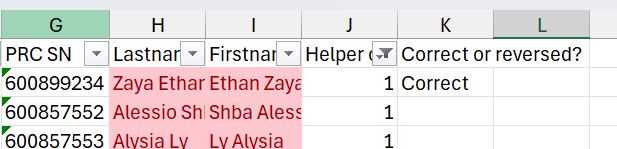
Formulas:
In cell H2: =CONCAT(A2, " ", B2)
In cell I2: =CONCAT(B2, " ", A2)
In cell J2: =COUNTIF(H:H, I2)
Double click the bottom right corner of each formula cell to carry the formula down the spreadsheet
Turn on FILTERS and filter out any student account with 0 in the helper column (J)
This will show all student accounts with a duplicate account.
Step 3: Ask the coordinator to confirm what accounts are correct
It's not always easy to determine which accounts are the correct orientation, so email the coordinator the spreadsheet requesting they fill in the final column with "correct" or "reversed"
Step 4: Lodge a ticket with ITD
Ask the SAT2 team to merge all SOURCE student accounts (reversed) into the correct TARGET (correct) account