
School information is stored in two places in Fresh Desk:
-
There is an entry for each school in Customers > Companies
- In the Ticket Fields there is a drop down list of all schools so that a school can be associated with a ticket
Both places should be updated.
The Ticket Fields school data allows you to associate a school with a ticket in Freshdesk. This is important as it allows you to view the history of tickets logged by a school.
Updating the School Ticket Fields
- Click on the Admin tab, then Ticket Fields within General Settings
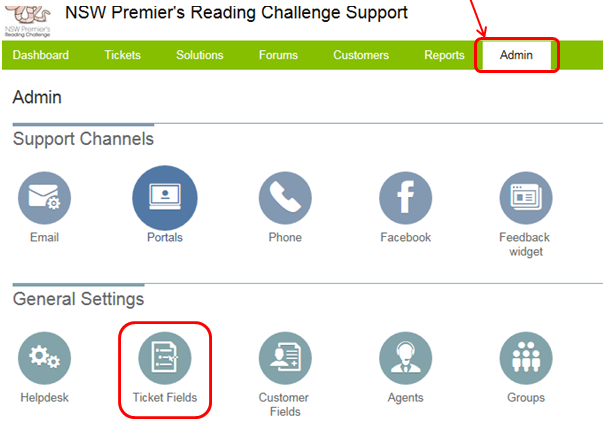
This will display all the Ticket Fields that capture information from a customer when they log a ticket. The school information is stored as a Dependent Field. This means that the possible schools that a person can choose are dependent on what they select from the School Type and Alpha drop down menus. To edit the school information, click on the Edit button that appears when you hover over the School Type field.
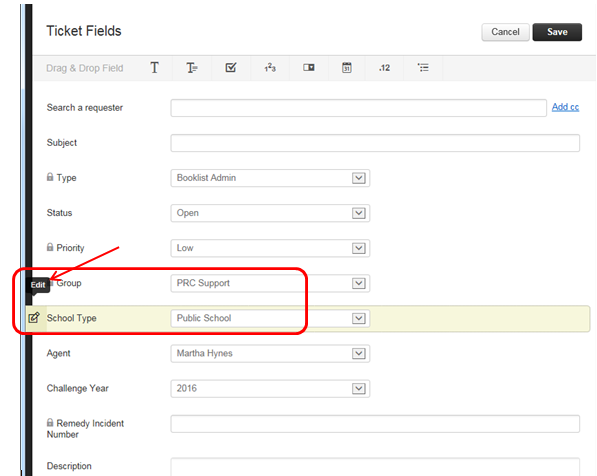
This will bring up the Properties screen for School Type
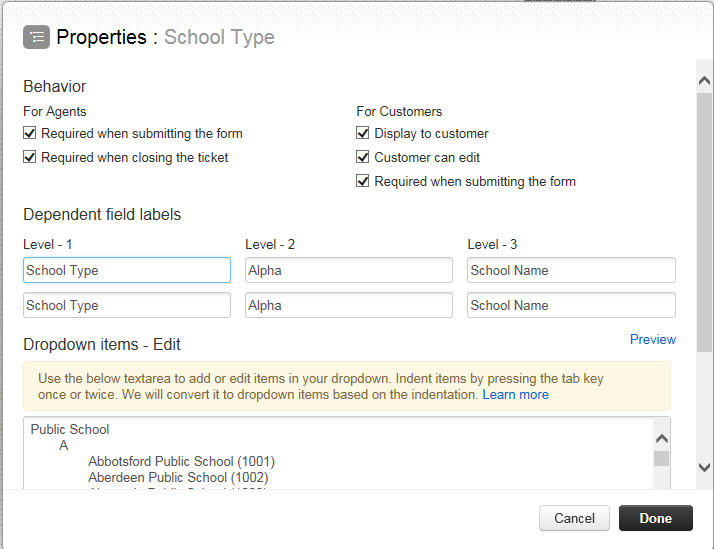
All of the school information is listed in the Dropdown items - Edit box at the bottom of the screen. It is grouped by School Type / Alpha.
To edit an existing school
- scroll until you find the school - if you click within the text box where the schools are entered, you can also use the Ctrl-f search within your browser to find the school
- make whatever changes you need to to the school name or school code
Ensure that you do not delete any tabs or new lines - Freshdesk uses these to work out what should be displayed in the dropdown lists.
To add a new school
-
search for the school that will appear before it alphabetically in the school list, ensure you add it to the correct School Type (public or non-gov)
- go to the end of the line of the school that will appear before the new school in the list
- press the Enter key
- press the Tab key twice
- type the name of the new school
- type the school code in brackets at the end (follow the same pattern as the other schools that have been entered)
- click the Done button in the bottom right of the Properties: School Type screen
- Click the Save button at the top right of the screen, to ensure changes are saved
The new school should now appear as a possible choice in the Ticket Fields