
Within Freshdesk it is possible to export data for the tickets that have been logged with PRC Support. This allows the team to report on things like
- what times of year we receive the most support requests
- what types of things our users ask us about most frequently
- what proportion of our support is for non-gov users vs public schools
- Go to the Tickets tab in the PRC Support site
- Remove any filters that are in place in the left hand panel of the screen
- Add a filter for Created where you 'Select Time Period'
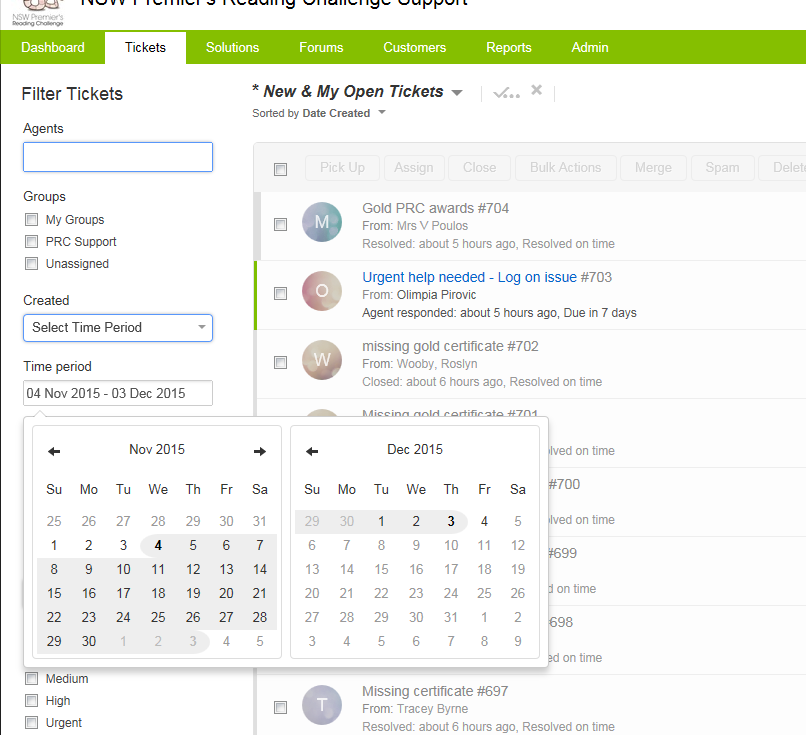
- Select the dates that you want to create a report on, the filter will pick up any tickets created within that time period.
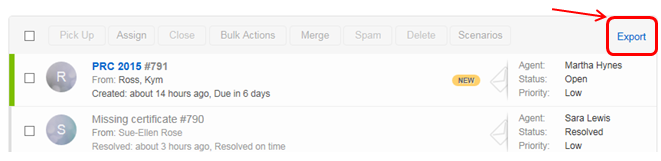
- Click on the Export link in the top right of the list of tickets.
-
The Export Tickets pop up screen will appear.
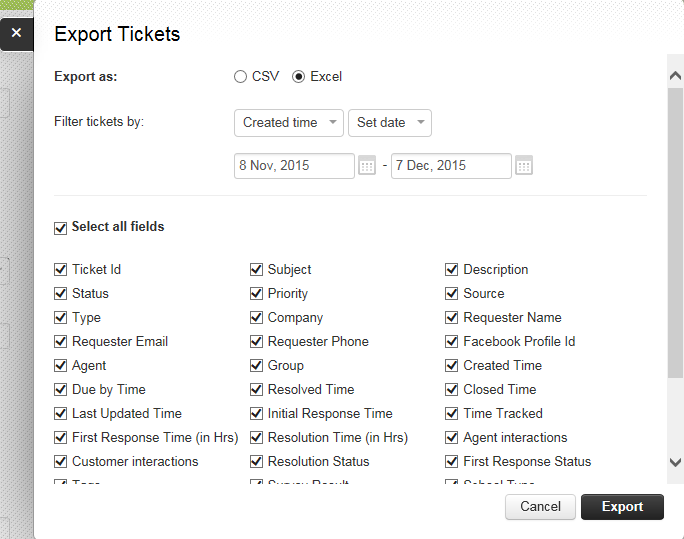
Tick the Select all fields box to select all of the fields for export.
Choose Excel as the file type to export.
Click the Export button.
A message will appear at the top of the screen saying Your ticket data will be sent to you shortly
You should receive an email within 15 minutes that contains a link to the file for download from support@freshdesk.com. If you do not, check your junk email folder to ensure it hasn't been filtered to there.
Follow the link in the email to download the file and save it to \\0797taulewsf01.central.det.win\corp-data\PRC\PRC xxxx\Website\Support Site\Service Desk\Reports (where PRC xxxx is the year the data was extracted for ie PRC 2015 for 2015 data)